If you have spent any time watching a 7-year-old navigate the Scratch interface, you’ve likely heard them talk about "clones." To a parent, this might sound like a sci-fi concept. In the world of block-based programming, however, clones are the bridge between a simple, static animation and a fully functional, professional-feeling video game.
I’ve spent years in classrooms helping kids move from "moving a cat across the screen" to "building a bullet-hell space shooter." The transition almost always happens the moment they discover the clone sprite Scratch command. But before we get into the mechanics, let’s clear the air: learning to code is not about "getting fast." It is about getting comfortable with frustration. If you see a platform promising your child will be a pro in four weeks, run the https://fire2020.org/whats-a-realistic-weekly-schedule-for-learning-scratch-at-home/ other way.
What Exactly is a Scratch Clone?
In Scratch, a "clone" is a copy of a sprite that exists while the project is running. Think of it like a rubber stamp. You design one "master" sprite—let's say, a falling raindrop—and then use code to tell the computer, "Make a copy of this stamp every half second."
This is a fundamental shift in Scratch game mechanics. Without clones, if a child wanted to make a game where 50 zombies walk across the screen, they would have to manually create 50 separate sprites. That is a nightmare for performance and organization. With cloning, they write the instructions for one zombie, and the computer handles the rest.
The "Kid Gets Stuck" List: Where Clones Break Everything
I keep a mental tally of where kids hit a wall. Cloning is high on that list. When you are teaching a child to use these blocks, you are going to see these three specific points of failure:
- The "Ghost in the Machine" Syndrome: A child creates a clone, but it appears right on top of the original sprite and never moves. They think nothing happened. The secret? The clone needs an "When I start as a clone" block to trigger its movement. The Memory Leak: If they don’t tell the clones to delete themselves, the project eventually slows to a crawl or crashes. Kids forget the "Delete this clone" block because it feels counter-intuitive to "destroy" what they just worked so hard to create. The Variable Trap: When a child wants each clone to have its own health or speed, they often use a regular variable instead of a "For this sprite only" variable. It creates a logic loop that makes every clone act exactly like the first one.
Live Instruction vs. Pre-Recorded Content: The "Pause-Button" Problem
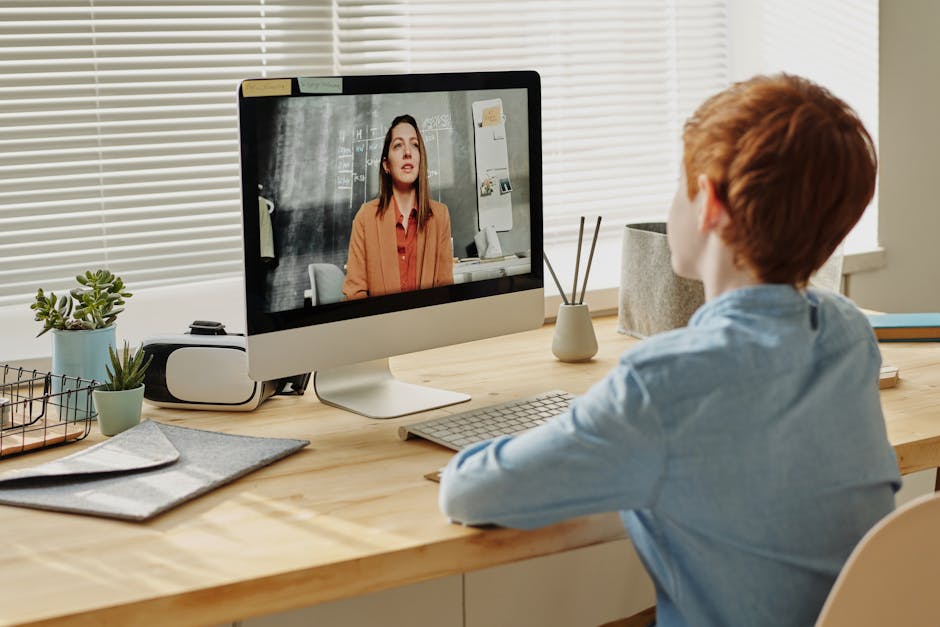
I have sat through hundreds of hours of "coding classes" that are nothing more than a voice-over recording of someone clicking blocks. These are the worst offenders for kids ages 5-10. Here is why: when a child gets stuck at the "clone" stage, a video cannot help them. A video cannot see that they accidentally dragged a "create clone" block inside a forever loop, creating infinite sprites that crashed their browser.
Interactive learning requires feedback. In a more info 1:1 setting, an instructor can look at the child's screen, point to the block, and ask, "What happens if we move this outside the loop?" That is the magic moment where learning actually happens. If you are choosing between a $10 pre-recorded course and a live session, understand that you are paying for the debugging, not just the content.
Comparison: How Kids Learn to Code
Method Feedback Loop Suitability for Ages 5-10 Outcome Pre-recorded Video None (Self-Debugging) Low (High frustration) Copy-paste coding 1:1 Live Coaching High (Real-time fixes) High (Builds confidence) Conceptual understanding Free Self-Guided Community Forums Medium (If motivated) Sporadic progressA Simple First Project: The "Ghost Spawner"
Don't let your child start by trying to build a Minecraft clone. Start small. Use this tiny project to introduce the concept of snap together command blocks without the frustration:
That’s it. It’s a 5-minute project that teaches loops, cloning, and sprite properties. It is immensely satisfying to watch, and it gives the child a win before they tackle more complex scratch clones tutorial projects.
The Limits of Free Self-Guided Options
There are incredible free resources available—the Scratch website itself is a goldmine. However, the limit of "self-guided" for a 7-year-old is the lack of a "why." A child can follow a tutorial to make a game, but if they don't understand the underlying logic, they are just mimicking shapes, not learning to code.
When looking for outside help, avoid programs that brag about how fast their curriculum is. Coding is a language. You wouldn't expect a 6-year-old to write a novel in a month; don't expect them to master complex game architecture in a few classes. Look for programs that emphasize the *logic* behind the blocks.
Conclusion: Encouraging the "Aha!" Moment
Whether you are looking for a scratch clones tutorial or debating between a subscription service and YouTube, keep your eyes on the goal. It isn't to make them a software engineer by age 10. It’s to help them understand that they are the architects of their digital world.
When your child comes to you frustrated because their clones are stacking up in the corner of the screen, don't rush to fix it for them. Ask them what they think the computer is doing. Are the clones deleting themselves? Did they remember to give the clone instructions? That conversation—that 1:1 moment of guided discovery—is where the real coding education happens.
Stay curious, keep the projects small, and remember: if it’s not fun, they aren’t learning.